What's New
Version 5.36.0 - March 2026
Shared Worklist Management Improvements
The Shared Worklist management page has been moved to the Profile section - it is now available to Supervisors.
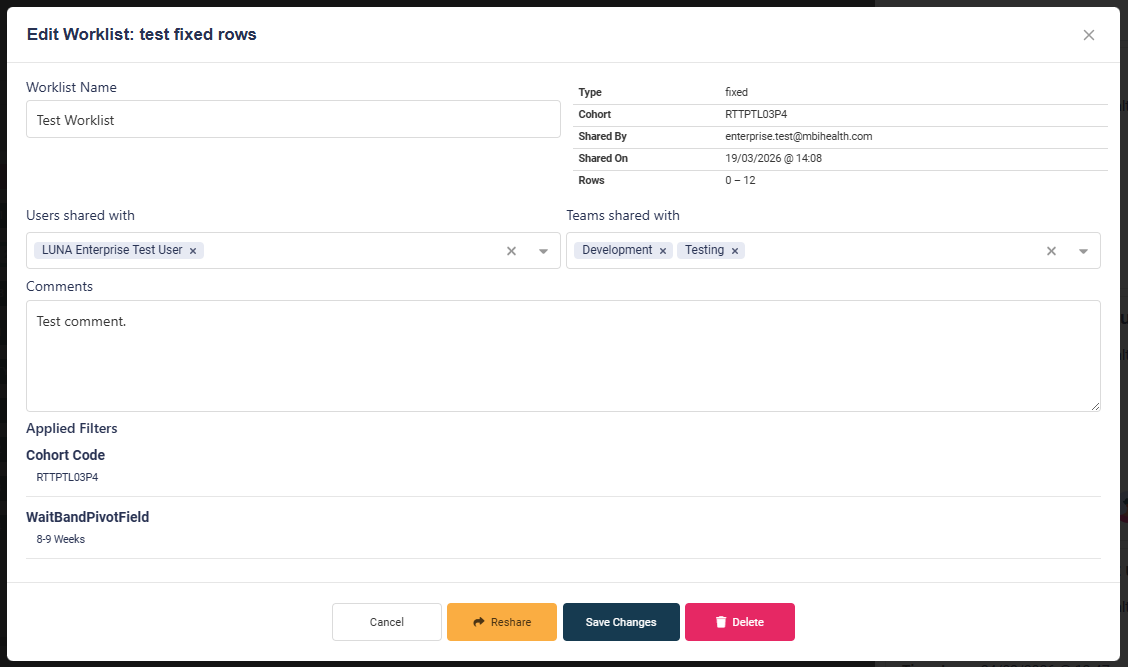
Worklists are now able to be modified by users. When a grid row is clicked, an Edit Worklist modal opens, which allows the user to:
See at a glance all details of the worklist
Change the worklist's name, users, teams shared with, and comments
Reshare fixed-row worklists (previously done via a button in the grid)
Delete the worklist. This replaces the Delete Rows button on the management page. The user must approve a confirmation prompt to delete the worklist.
Users and Teams shared to are now displayed in the grid. Team names are now saved in addition to user emails. The grid can be filtered by these columns.
Activity Panel Shared Worklists Tab
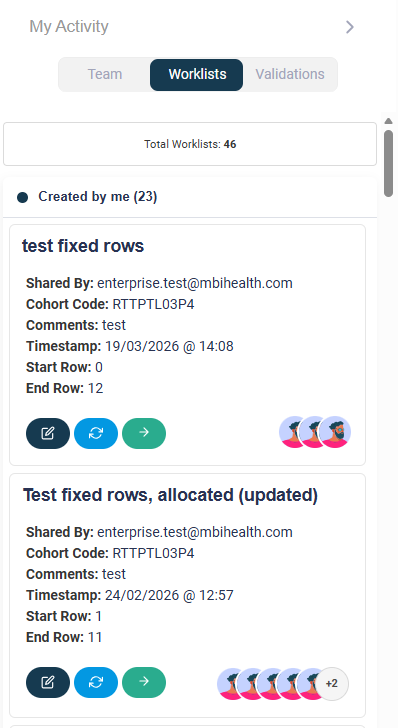
All worklists available to the user are now shown (based on user role).
Worklists are grouped into 3 collapsible sections:
- Created by me
- Assigned to me
- Global
Worklists can now also be edited, reshared (fixed-rows only) or deleted while using the activity panel: clicking a button on the worklist card opens the Edit Worklist modal.
A full-width button, similar to the one on the Validations tab, has been added at the top. This shows the total number of shared worklists, and opens the Shared Worklists management page/grid when clicked.
The Delete button has been removed from the cards, as this is now done in the modal.
The layout of the Worklist cards has been redesigned.
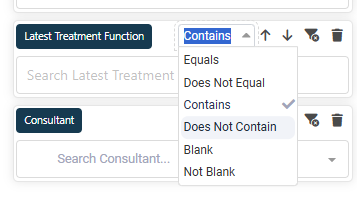
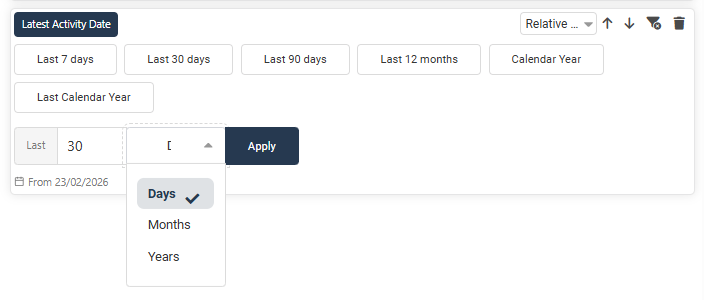
Advanced Relative Filters
Extends the global filter panel to support greater-than, less-than, and equals comparisons for date and number filters, alongside relative date presets.
New Dynamic Worklist Fields
The following dynamic fields have been added to the Worklist:
- Activity since last validation - This is where the
LatestActivityDatecolumn is greater than the latest default form validation date - Validated by MBI - Where default form
ValidatedByhas theUserLocationof MBI - Document published since latest validation
General Fixes and Changes
- The Filter panel sidebar is now draggable, allowing the user to adjust the width as needed.
- Managers and Supervisors are now only allowed to delete worklists that they themselves have shared.
- When a worklist is deleted, all pathway locks associated with it are also removed from the LUNA_Enterprise_App database.
- Shared dynamic worklists with allocated rows now correctly restrict the grid to the allocations when loaded.
- Several errors triggered when manually changing the dates in the Date Range global filter have been fixed.
- In the RTT Validation form, The options for the New Start RTT Status and New Stop RTT Status fields are now correctly displayed, where the labels in the data are in a legacy format.
- Multiple security improvements, new route guards and permission checks have been added to ensure users can only access data and features relevant to their role and permissions.
Version 5.35.0 - March 2026
Dynamic Form Layout
- The RTT Validation form layout is now dynamic, allowing for more flexible arrangement of fields and sections.
General App Fixes and Improvements
- Multiple fixes and improvements to the Validation modal.
- Fixed Manager access to notifications page.
Version 5.34.0 - March 2026
Template Selector Improvements
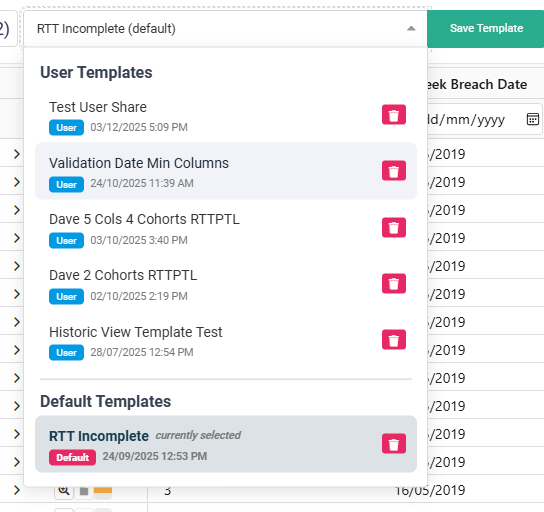
The Template Selector in the Worklist has been updated:
- The template type is now displayed in tags, colour-coded by type.
- The currently selected template is now highlighted in the dropdown.
- The dropdown options are split into sections by type.
Shared Worklists Fixes and Improvements
- Multiple bug fixes, input validation and layout improvements in the Share Worklist Modal.
- In the Activity Panel, the specified rows are now shown in the shared worklist cards.
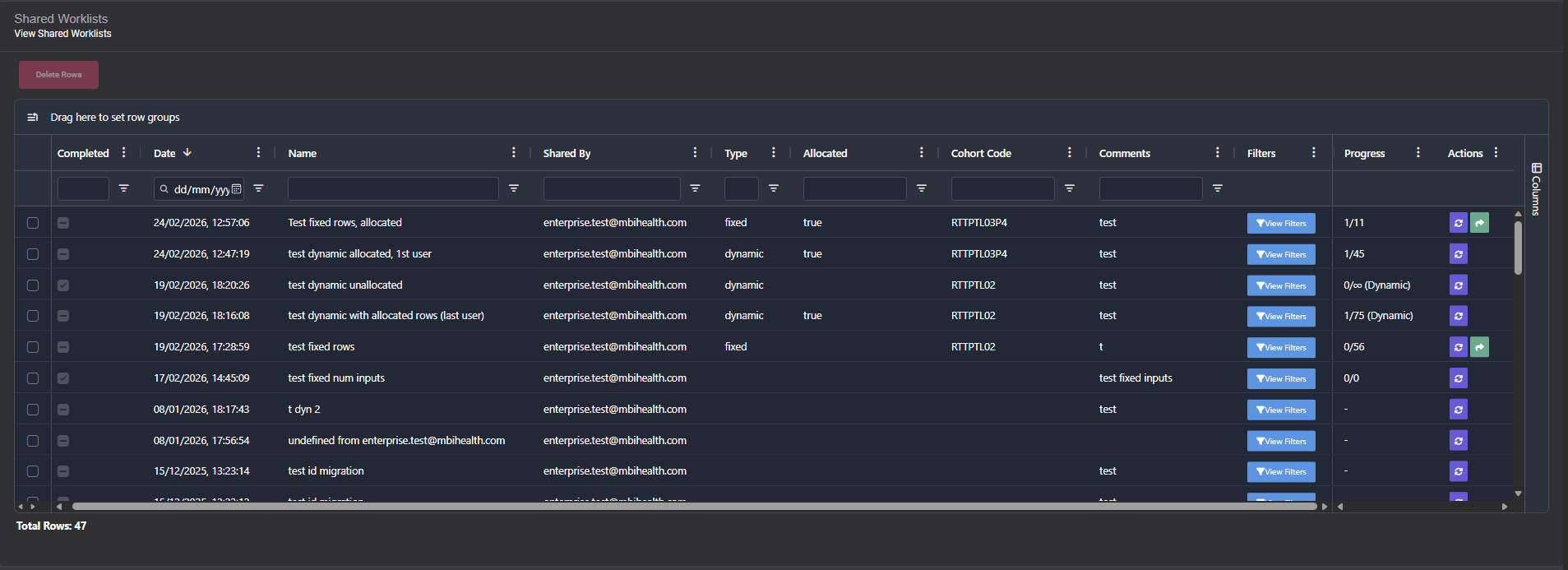
- The Shared Worklists management page has been redesigned:
A Progress button has been added to each row, which loads the validated/total pathways stats for the row when clicked.
A Reshare button has also been added to each row, which reshares the worklist based on the original parameters set.
An option has been added to the right click Context Menu to copy the worklist link to the clipboard.
The Filters column now contains a button, which displays the filters in the filter model in a modal.
Grid columns have been updated to show more relevant data.
General Fixes and Improvements
- The response time for the user's validations in the Activity Panel has been improved.
- In the View Edit Modal, the order of selected cohorts can now be changed by dragging and dropping them in the table.
- Multiple issues when uploading users via CSV have been fixed.
- HTML that was showing in the Cohort Chart tooltips has been removed. Correct tooltips now show for the legend items.
- A notification error when Validators share templates has been fixed.
- Managers can modify Global templates
- Enterprise loading time has been significantly improved.
Version 5.33.2 - February 2026
- Supervisors can no longer manage cohort-level templates.
- Fixed incorrect view IDs in the Pathfinder View Selector.
- Errors when changing views in Pathfinder have been fixed.
Version 5.33.1 - February 2026
- A new column, Latest Period Validated, has been added to the Worklist.
Version 5.33.0 - February 2026
Validators can now save Global filter combinations in the Filter Panel.
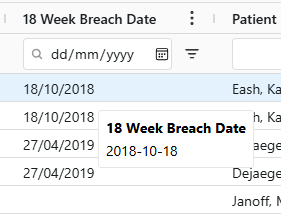
The column name is now displayed with the value in the Worklist tooltips in new Pathfinder.
Fixed an issue where worklist comments were not saving.
Fixed several data and formatting issues in the Validation History download.
The Surveyor URL for each pathway can now be added to the Worklist Excel and CSV downloads (configurable per trust).
Version 5.32.2 - February 2026
Notification System Improvements
Notifications are now updated in realtime via websocket.
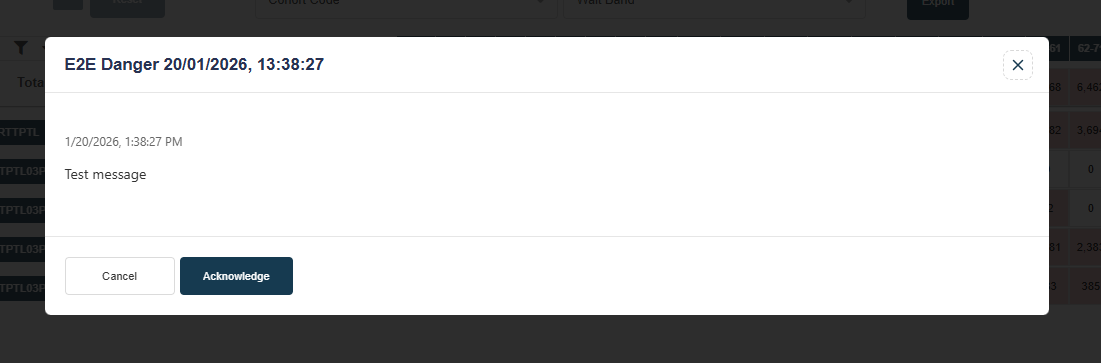
A new danger notification type has been added. This is displayed as a modal, which can be dismissed by the user.
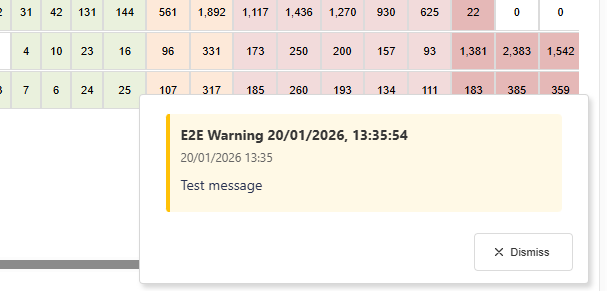
Warning notifications are displayed as a toast message.
Version 5.32.0 - January 2026
Configurable colours, tags for pivot cohorts
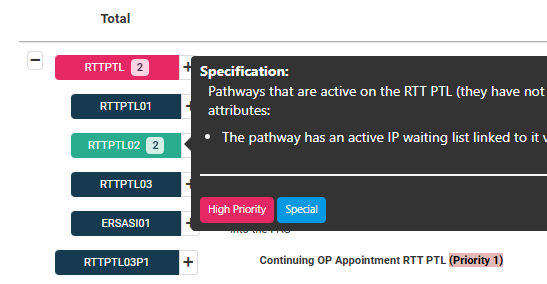
This adds the ability to change pivot cohort colours and add tags via the ViewDefinition config.
Version 5.31.0 - January 2026
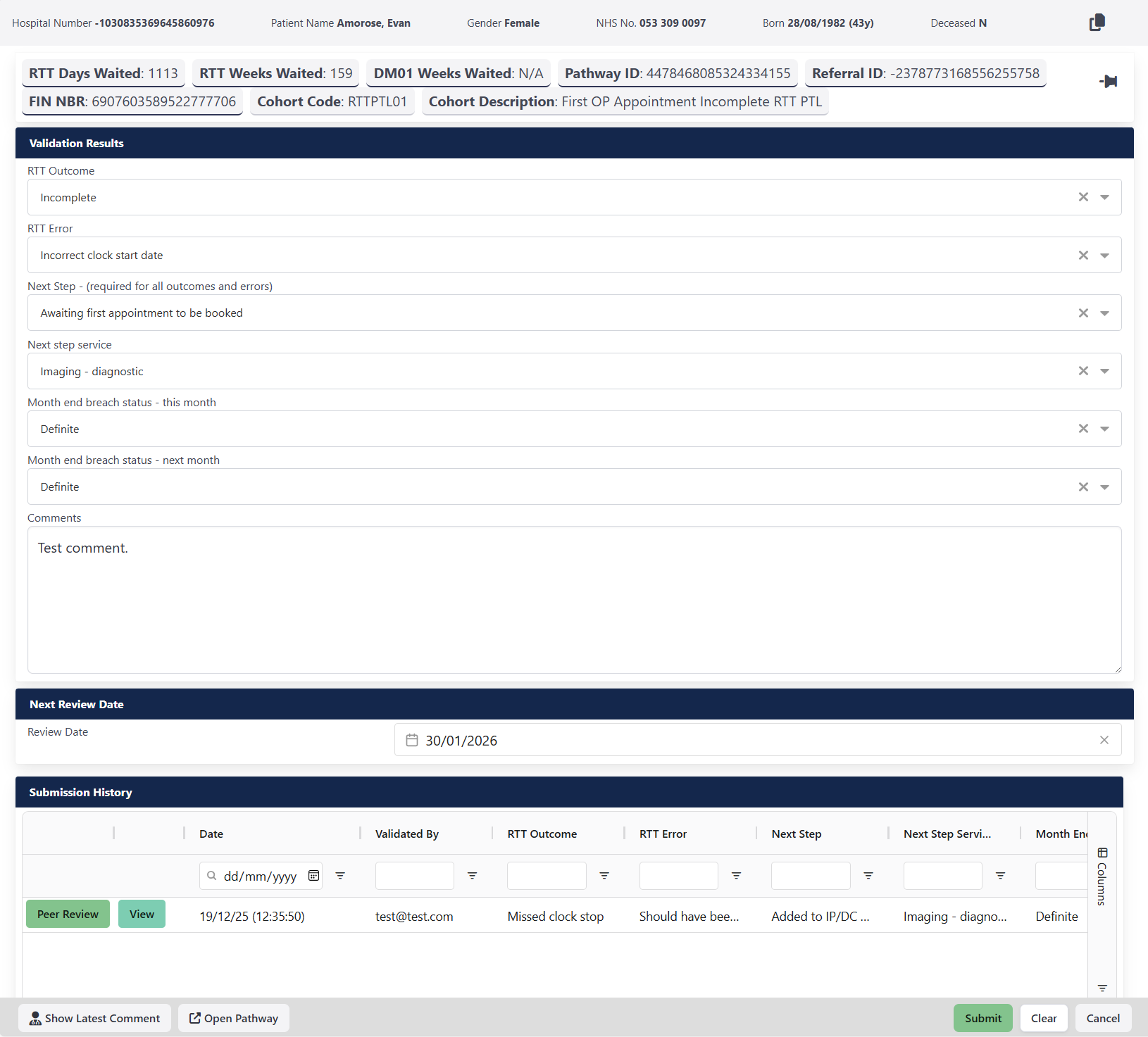
New RTT Error Validation form
A new validation form for RTT Error validation has been added to Enterprise Forms.
Version 5.30.0 - December 2025
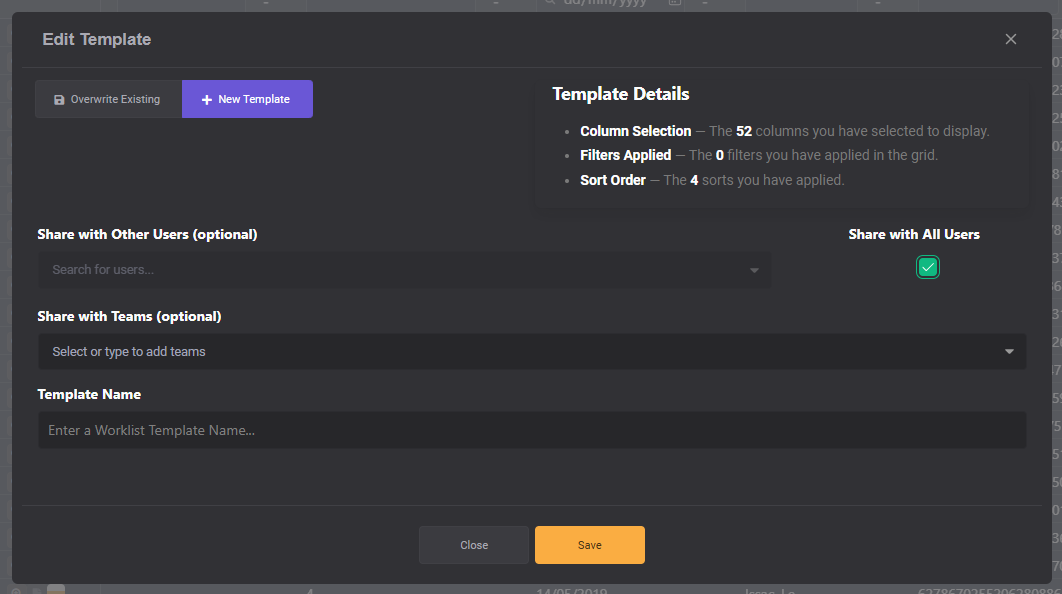
Template Sharing Improvements
When sharing a template, users can now select a checkbox to share with all users.
Version 5.29.0 - December 2025
Pathfinder Configuration Page
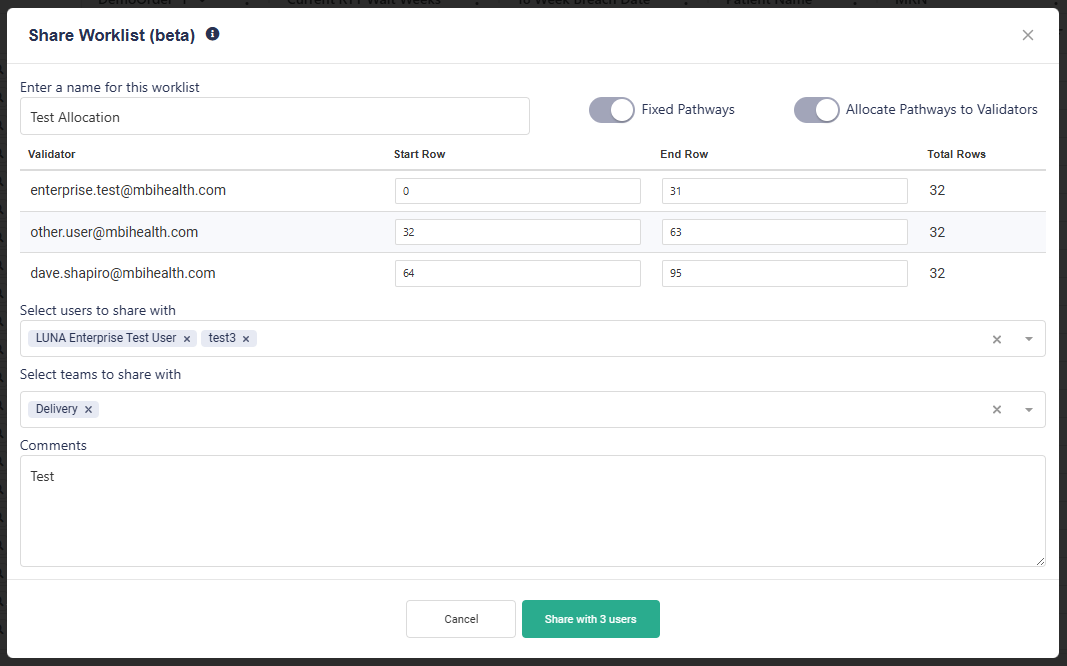
Dynamic Worklist allocation
Pathways in Dynamic worklists can now be allocated to validators.
The modal interface has been updated to be more intuitive to use.
New Tracking Form
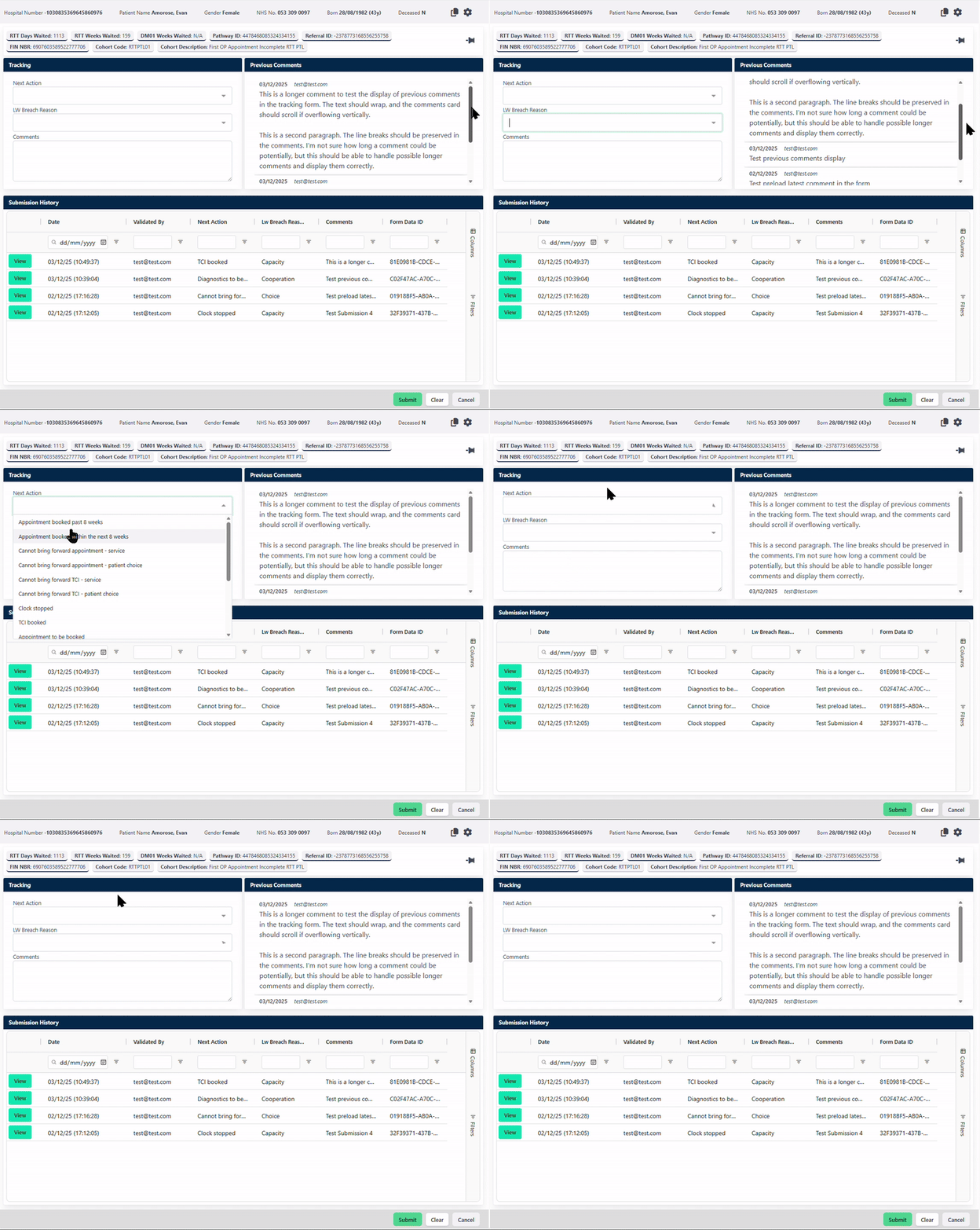
A new Tracking form has been added to Enterprise Forms.
The form is based on the Free Text Comments form, with the addition of 2 multiselect fields:
- Next Action
- LW Breach Reason
The comments from previous pathways are displayed on the right hand side.
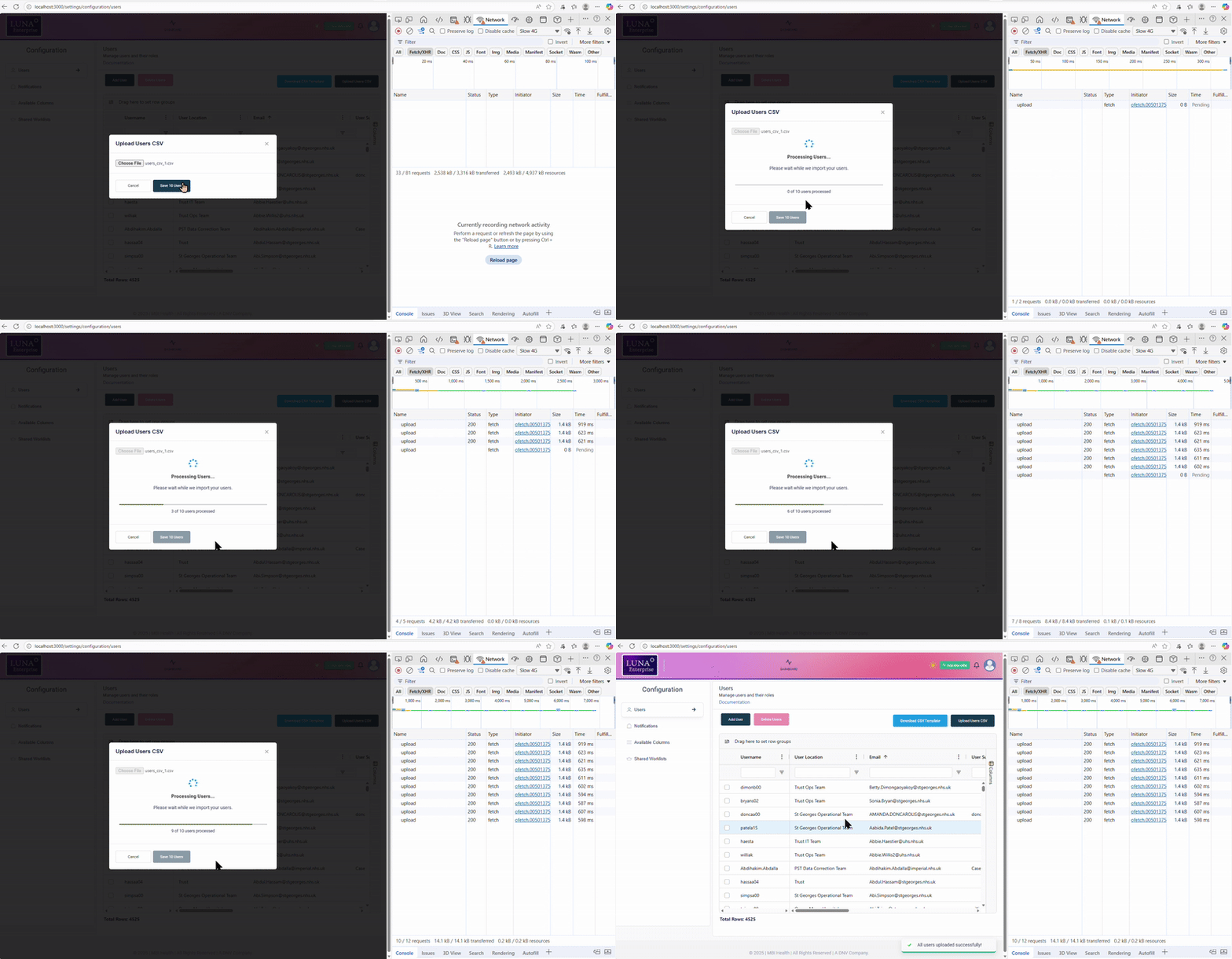
Users CSV Upload Improvements
The Users CSV upload functionality has been improved to provide better feedback on upload progress and errors.
Version 5.28.0 - November 2025
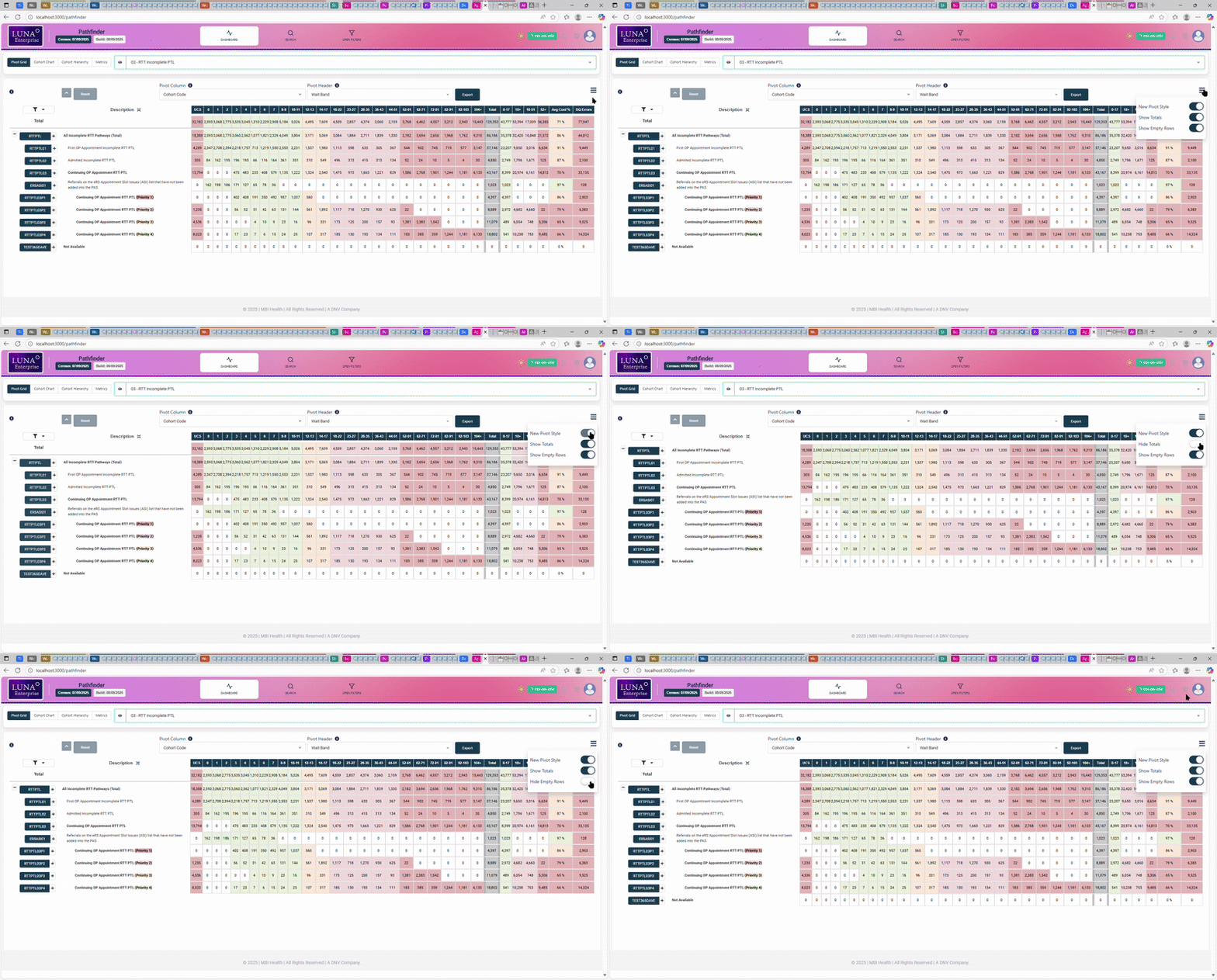
Enhanced Pivot Table Options
- A menu has been added to the Pivot Table, allowing users to:
Toggle the Totals row on or off.
Switch between New and Classic pivot styling.
Show or hide empty rows.
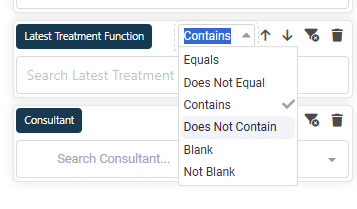
Expanded Advanced Filter Options
Does Not Equal and Does Not Contain options have been added to the Advanced filter options.
Cohort Chart Improvements
- The Cohort Chart is now reactive to the Select Cohorts filter in the Pivot Table.
- Grouping cohorts are now included in the chart.
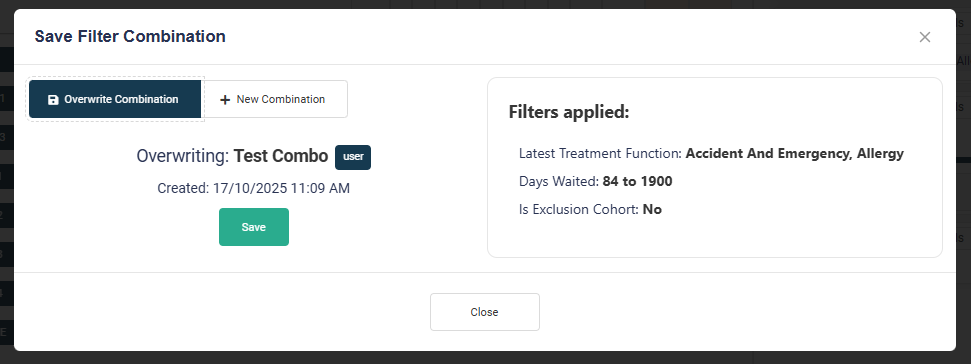
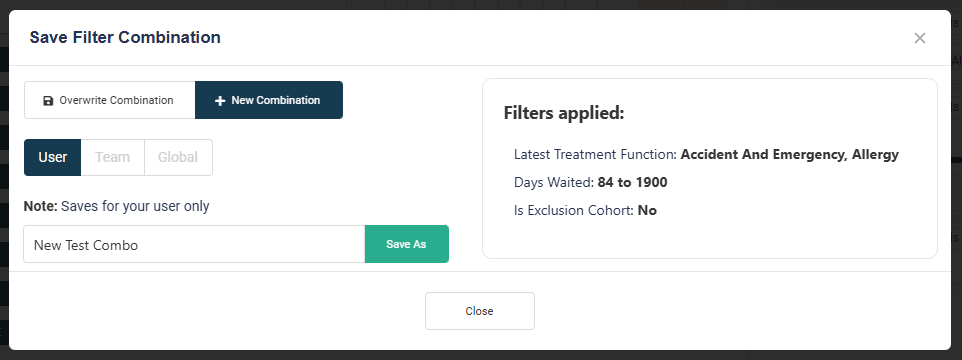
Improved Filter Combo Saving
The filter combo save modal has been updated to allow the user to either update the currently selected combo or save a new one.
If updating the current combo, it's name, type (user, team, or global), and creation date are displayed.
The currently applied global filters are now displayed on the right hand side of the modal in a user-friendly format.
Configuration Pages Improvements
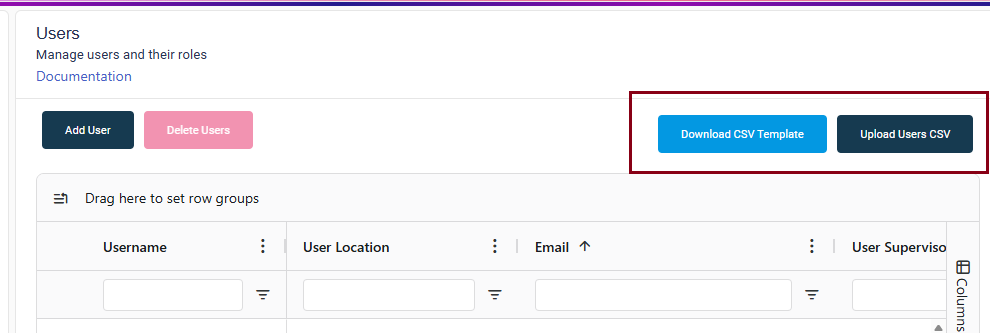
Users configuration page
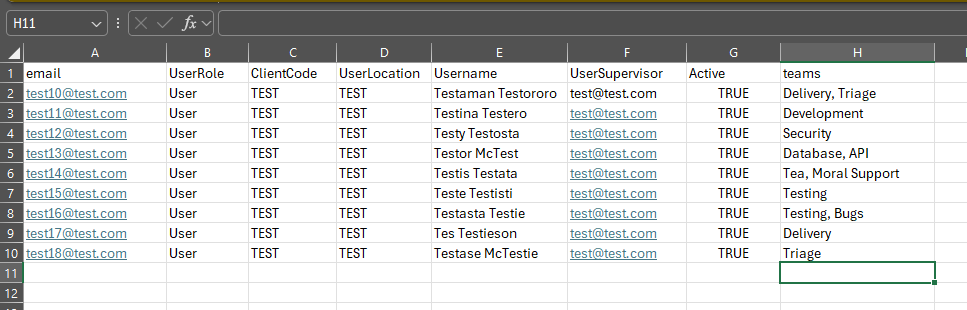
The ability has been added to download a CSV template for adding users, and to upload a CSV file containing multiple users.
Notifications configuration page
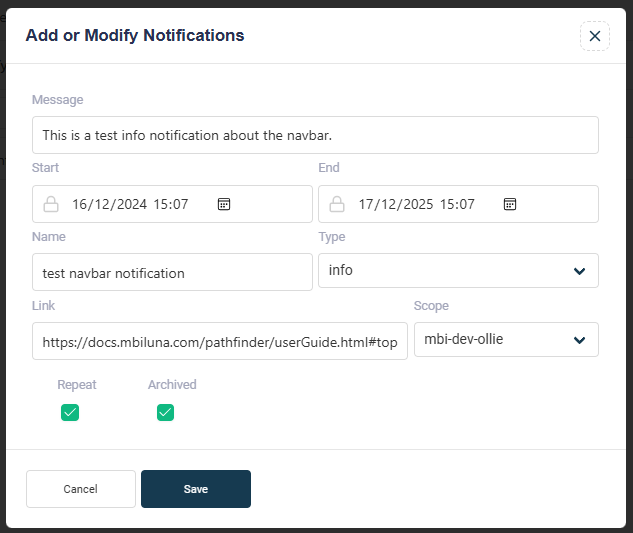
The Notifications page has been moved to the configuration section to allow Managers to access it.
Managers can add, edit or archive notifications for their ClientCode only.
The ability to Delete notifications has been replaced by the ability to Archive them. Archived notifications are filtered out by default in the grid.
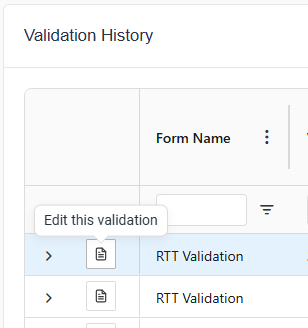
Validation History page
An Edit Validation button has been added to each row in the validations grid. This opens a the validation in a form modal directly for editing/submission.
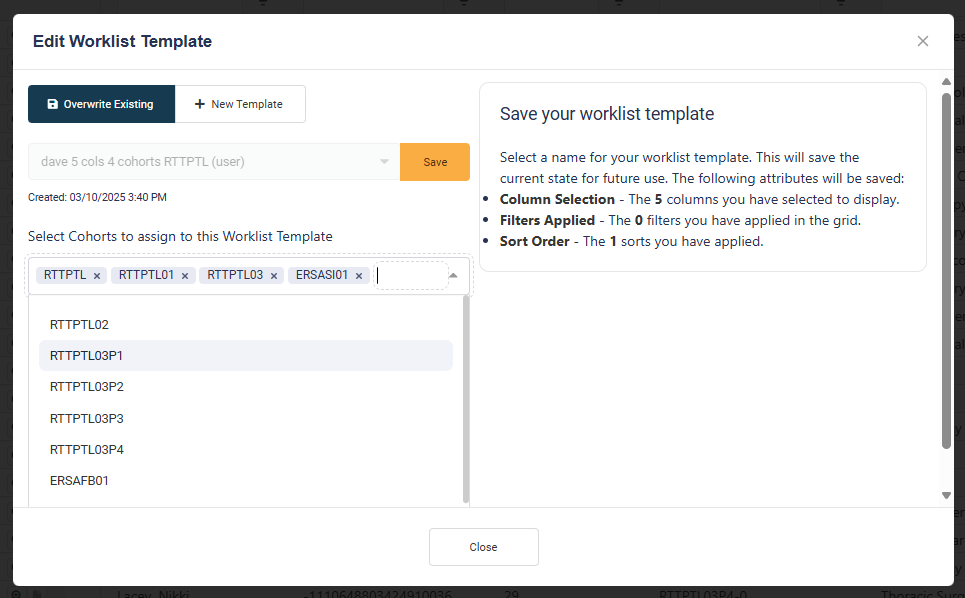
Worklist Template Improvements
Users can now select Cohorts from the current view to assign to a worklist template.
Hierarchy Chart Improvements
The following improvements have been made to the Hierarchy Chart:
- The hierarchy chart has been moved to it's own page at /pathfinder/hierarchy.
- The ability to select hierarchies from a dropdown menu for display.
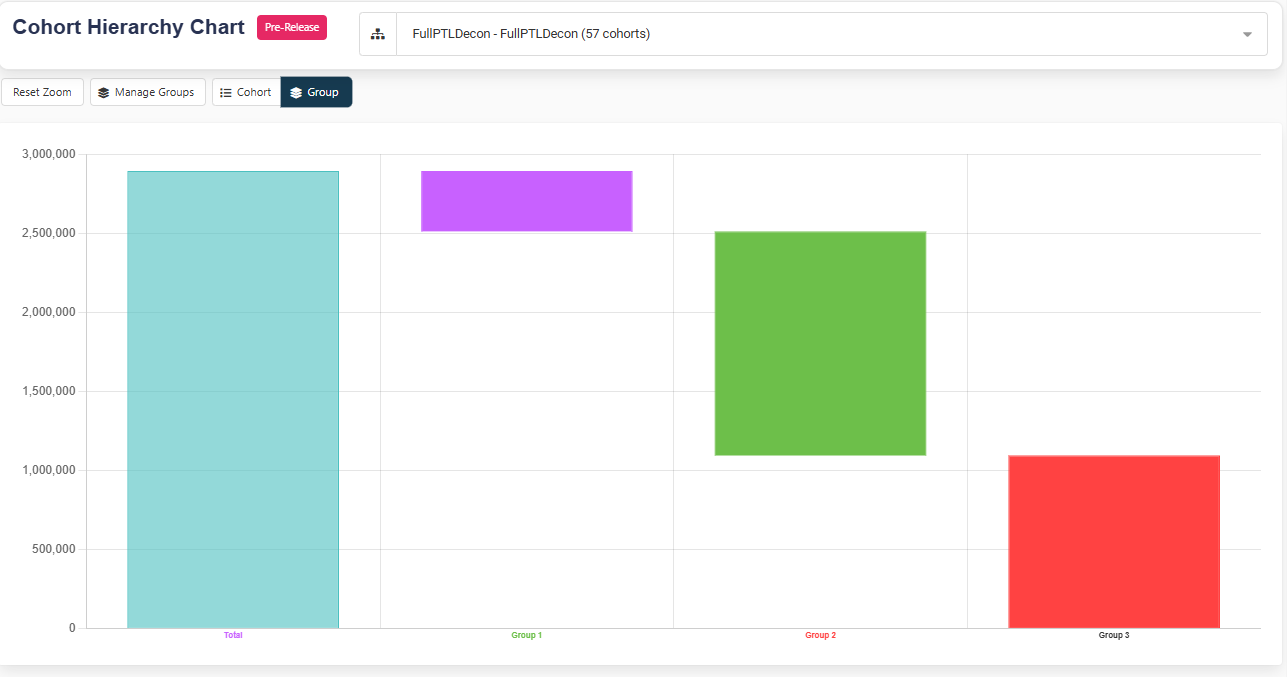
Group mode:
Shows only the user's groups in the chart.
Group order can be changed by dragging and dropping the groups in the modal table.
An info tag displays the number of bars in each group.
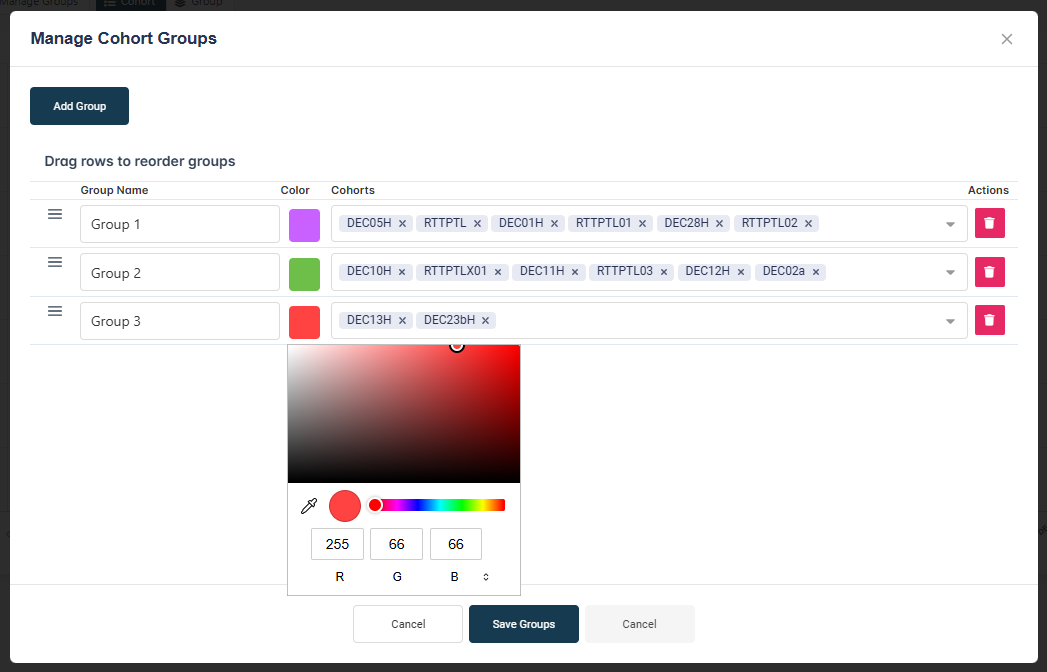
Cohorts can be grouped in the hierarchy chart via a modal interface.
The user can select a group name and colour.
Group labels at the base of the chart are highlighted with the chosen group colour.
The chart tooltip displays comprehensive info on the group and it's cohorts.
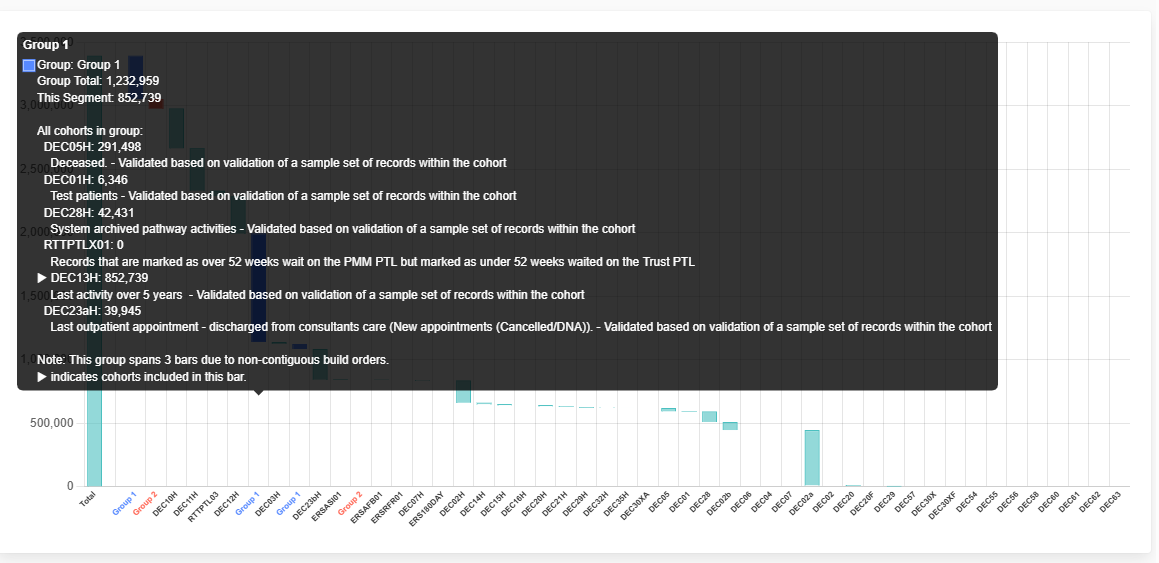
The chart can be switched between Cohort and Group modes.
Cohort mode:
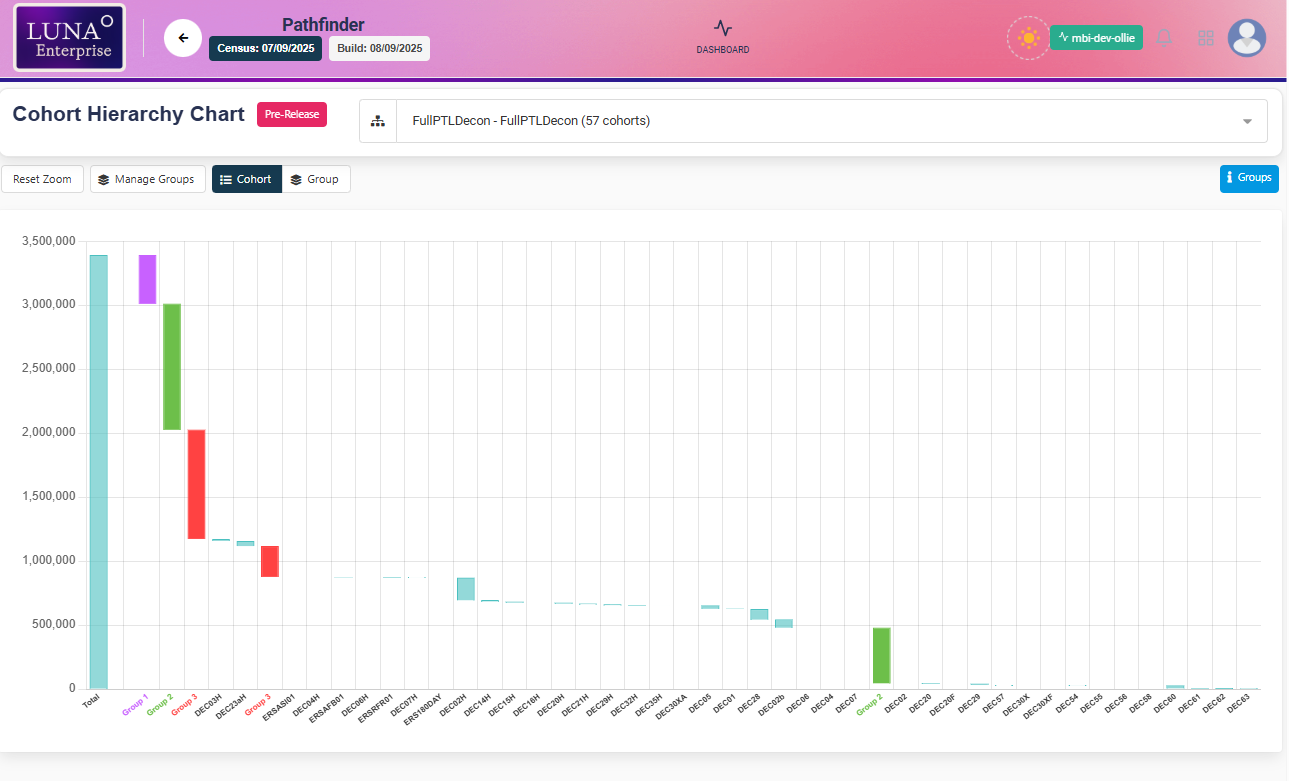
Displays all the hierarchy's cohorts, and the groups created by the user.
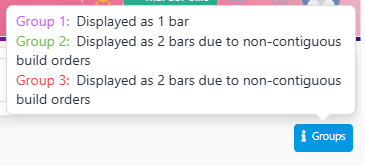
The build order is preserved, so if a group comprises cohorts with non-contiguous build orders, it will display as separate bars in the correct positions when in Cohort mode (see below).
In Cohort mode, additional groups info is shown in a tooltip when the info tag at top right is hovered over.